
The crosshair is the setting you look at more than any other in CS2, since it sits dead center for every fight. Dialing it in properly sharpens target acquisition, cuts visual clutter, and helps muscle memory settle in. This guide walks through each crosshair console command, shows how to share and import crosshair codes, and lists real pro crosshair setups you can test right away.
Core Crosshair Console Commands
Every crosshair tweak happens in the developer console or inside your autoexec.cfg. Turn the console on under Settings > Game > Enable Developer Console, then open it with the ` (tilde) key.
Style
cl_crosshairstyle 0– Default dynamic (grows when you move or shoot)cl_crosshairstyle 1– Default staticcl_crosshairstyle 2– Classic dynamic (CS:GO style, favored by many pros)cl_crosshairstyle 3– Classic static (no movement spread animation)cl_crosshairstyle 4– Classic dynamic with alphacl_crosshairstyle 5– Static crosshair (the pro favorite, no movement animation)
Style 5 dominates competitive play. Because it doesn’t expand when you move, you learn to come to a full stop before shooting instead of leaning on visual cues.
Size and Thickness
cl_crosshairsize 2– Sets the length of each crosshair line. Values 1-5 cover most needs; pros often go with 2-3.cl_crosshairthickness 1– Sets the width of each line. Thinner values (0.5-1) are typical at higher levels for precision.cl_crosshairgap -2– Negative values close the gap between lines; positive values open it. Most pros use negative gaps (-1 to -3) so the lines almost meet at center.
Color
cl_crosshaircolor 1– Green (default)cl_crosshaircolor 2– Yellowcl_crosshaircolor 3– Bluecl_crosshaircolor 4– Cyancl_crosshaircolor 5– Custom (use withcl_crosshaircolor_r,cl_crosshaircolor_g,cl_crosshaircolor_b)
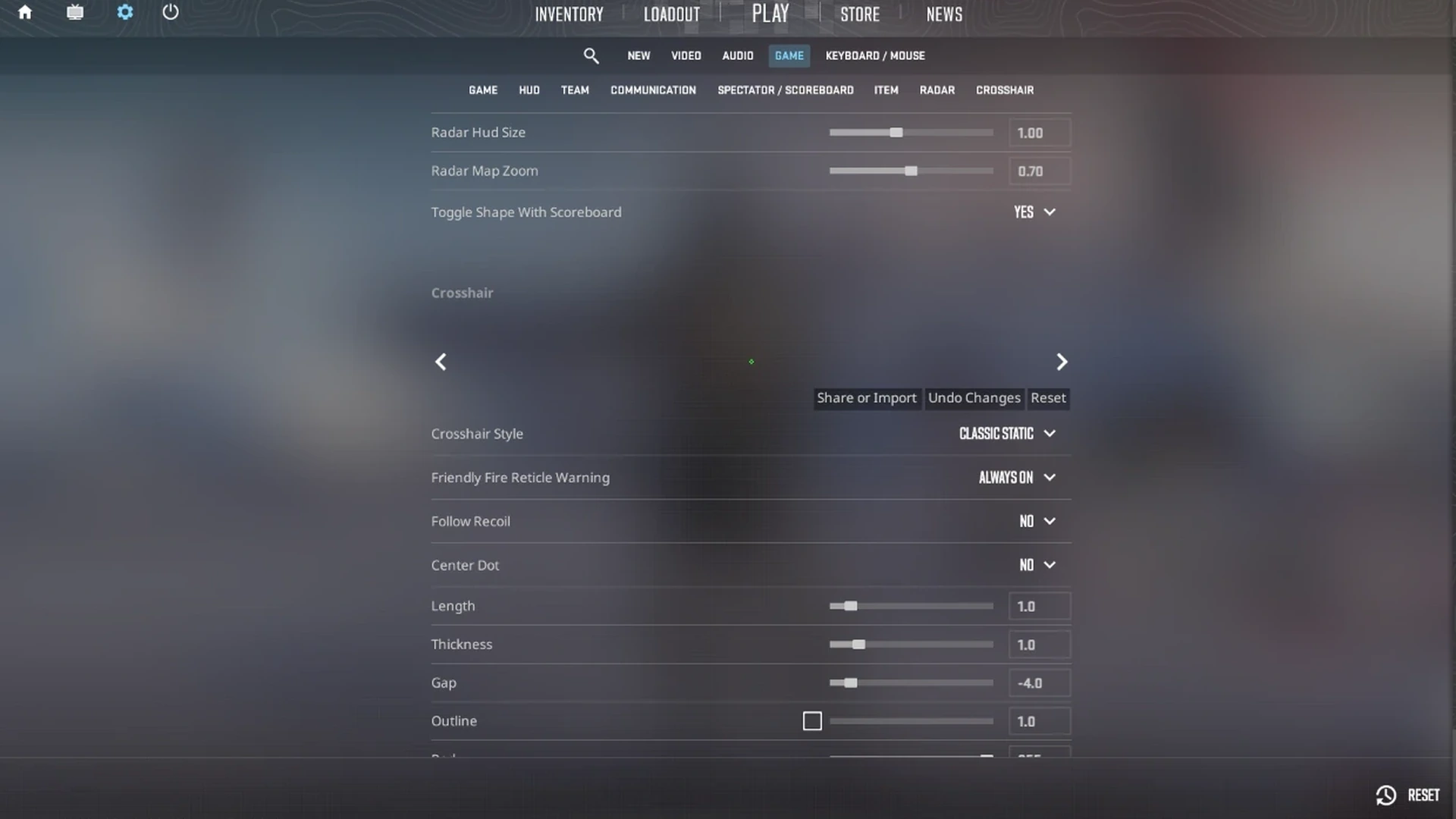
Cyan and green are the most popular picks because they stand out well against most CS2 map textures and character models.
Dot, T-Shape, and Outline
cl_crosshairdot 0– Hides the center dot (set to 1 to show it). A dot gives a precise point of aim but can obscure close-range targets.cl_crosshair_t 0– Removes the top line to create a T-shape. Some players like this because it keeps the upward sightline clear for targets above.cl_crosshairoutline 1– Adds a black outline so the crosshair stays visible on bright surfaces. Set to 0 to turn it off.cl_crosshair_outlinethickness 1– Sets the outline thickness when the outline is enabled.
Alpha (Transparency)
cl_crosshairalpha 255– Full opacity. Lowering it makes the crosshair semi-transparent (range 0-255).
How to Share and Import Crosshair Codes
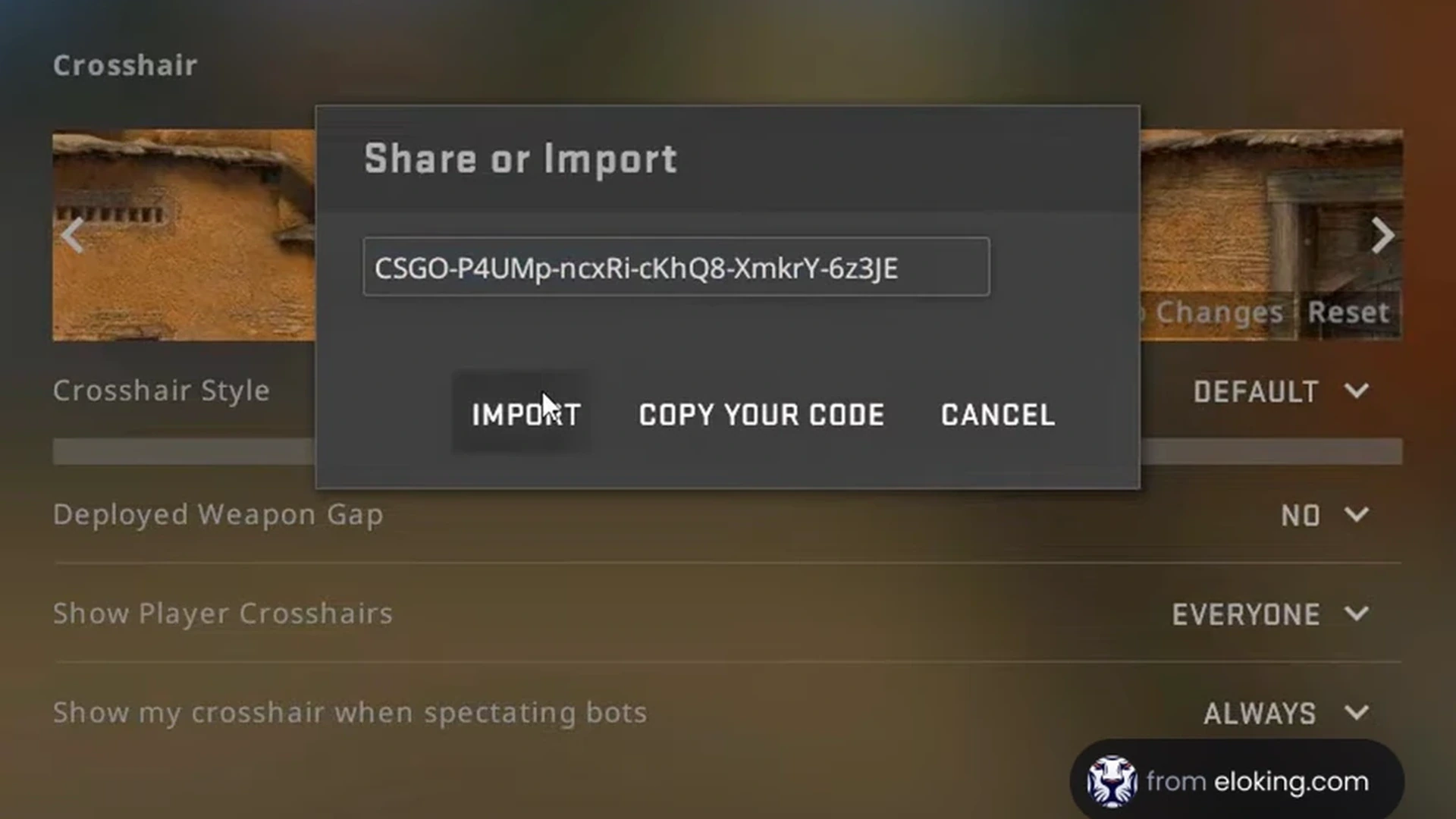
CS2 includes a crosshair sharing system. Under Settings > Game > Crosshair, you’ll find a Share or Import button. Each unique setup produces an alphanumeric code (e.g. CSGO-XXXXX-XXXXX-XXXXX-XXXXX-XXXXX) that holds all of your crosshair settings. Anyone who pastes that code into the import field gets your exact crosshair instantly.
You can also apply a code straight from the console: cl_import_crosshair_code CSGO-XXXXX-XXXXX-XXXXX-XXXXX-XXXXX.
Dynamic vs Static Crosshairs
A dynamic crosshair (styles 0, 2, 4) widens when you move, jump, or spray. It gives live feedback on your spread, but it can build bad habits, since players learn to fire while the crosshair is open instead of stopping first. Most high-level players avoid dynamic crosshairs.
A static crosshair (styles 1, 3, 5) stays the same size regardless of movement. It reinforces counter-strafing and stopping before you fire. If you’re building fundamentals, start with style 5 and a small, tight crosshair.
Pro Crosshair Examples
These configs reflect publicly known pro preferences. Players tweak their settings often, so treat them as solid starting points rather than fixed setups. For up-to-date pro config details, check our CS2 Players page.
s1mple-style (small static)
cl_crosshairstyle 5
cl_crosshairsize 2
cl_crosshairthickness 0
cl_crosshairgap -3
cl_crosshaircolor 1
cl_crosshairdot 0
cl_crosshairoutline 0
cl_crosshairalpha 255
Very tight, with no dot and no outline. It depends on clean counter-strafing to keep the crosshair on target.
ZywOo-style (small with dot)
cl_crosshairstyle 5
cl_crosshairsize 2
cl_crosshairthickness 1
cl_crosshairgap -3
cl_crosshaircolor 5
cl_crosshaircolor_r 0
cl_crosshaircolor_g 255
cl_crosshaircolor_b 255
cl_crosshairdot 1
cl_crosshairoutline 0
A custom cyan color with a center dot. A good fit for players who want a precise point of aim.
donk-style (classic small)
cl_crosshairstyle 5
cl_crosshairsize 3
cl_crosshairthickness 1
cl_crosshairgap -2
cl_crosshaircolor 1
cl_crosshairdot 0
cl_crosshairoutline 1
cl_crosshair_outlinethickness 1
Slightly larger, with an outline so it reads clearly on bright backgrounds. Suits players who put crosshair visibility first.
AWP / sniper crosshair
cl_crosshairstyle 5
cl_crosshairsize 1
cl_crosshairthickness 0.5
cl_crosshairgap -4
cl_crosshaircolor 4
cl_crosshairdot 1
Extremely tight with a dot for precise AWP pre-aiming. Some dedicated AWPers run a dot-only crosshair.
Additional Tips
- Use
crosshair_recoil 0so the crosshair doesn’t track recoil during sprays (it should already be 0 by default in CS2). - Test any new crosshair on a deathmatch server for at least 30 minutes before you decide. Muscle memory needs time to adjust.
- Don’t keep switching your crosshair. Consistency matters more than finding the perfect one right away.
- Save all your commands in
autoexec.cfgso your settings survive game updates.
Conclusion
A good crosshair should feel almost invisible: accurate, unobtrusive, and consistent. Start with style 5, a size of 2-3, a thickness of 0.5-1, and a negative gap of -2 to -3, then adjust for comfort. What matters most isn’t which pro’s crosshair you copy, but how long you stick with one configuration and build real muscle memory around it.
Comments